
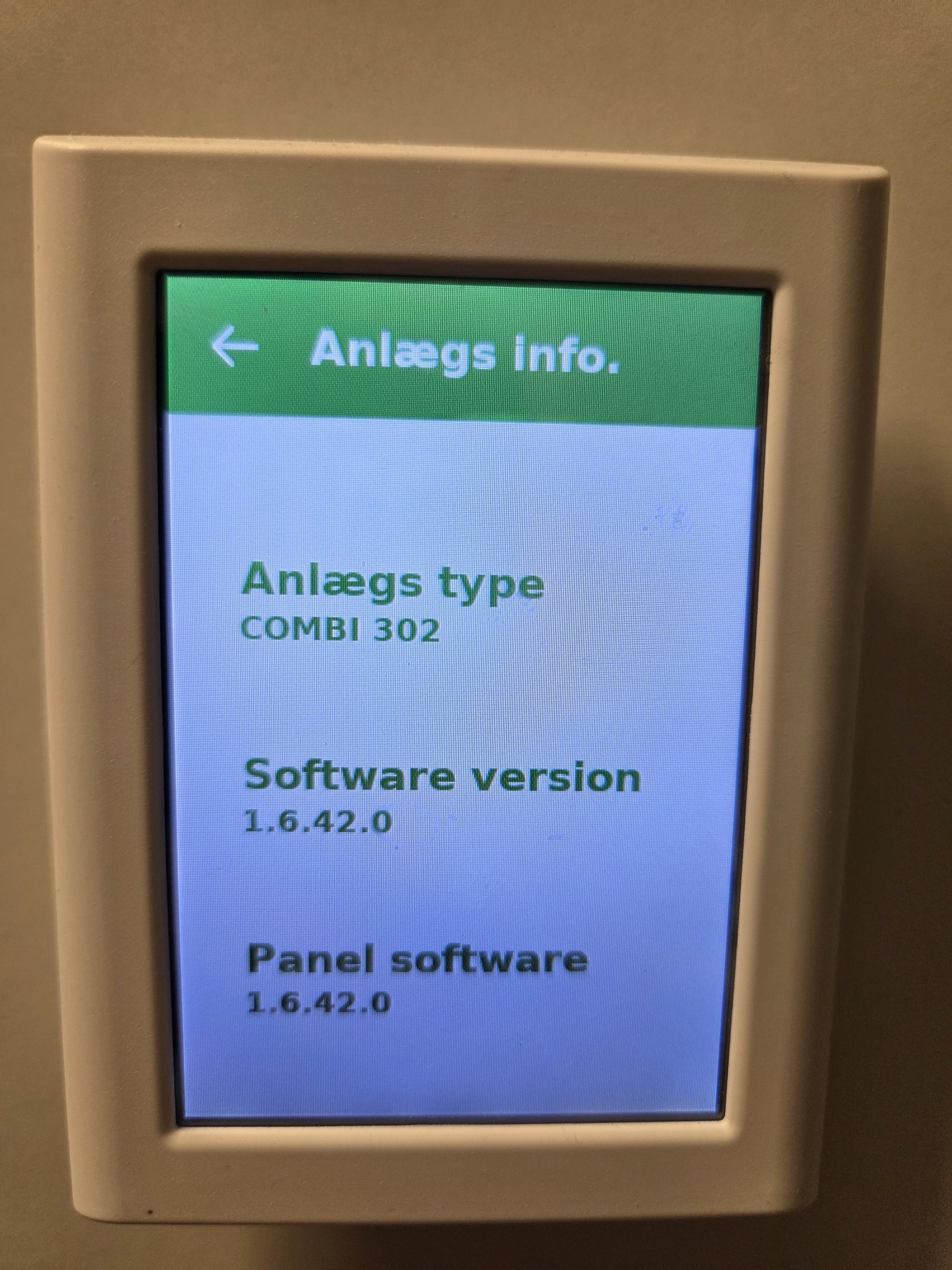
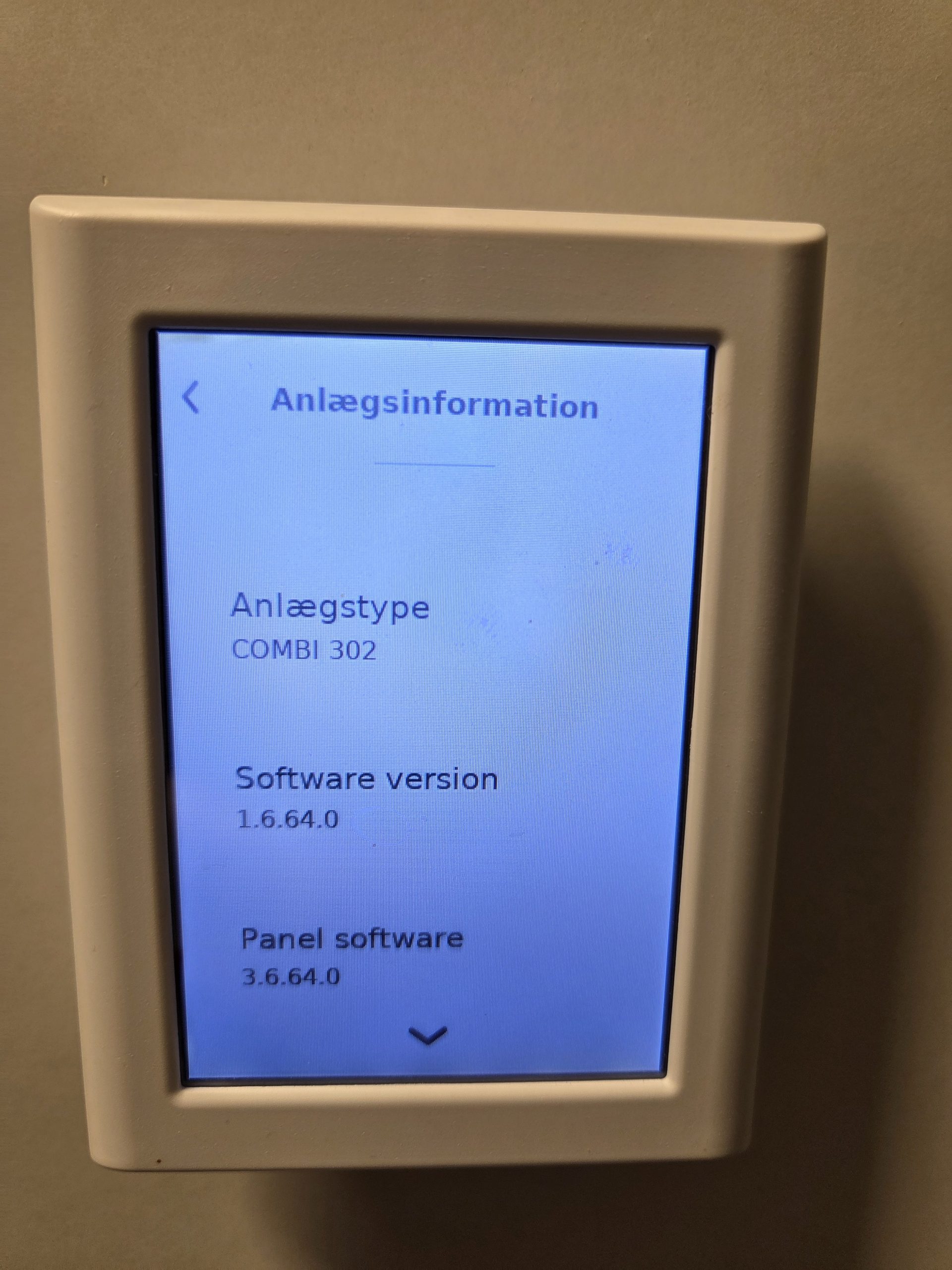
This guide explains how I updated the firmware on my Nilan Combi 302 Polar, equipped with a CTS602 controller and HMI control panel, from version 1.6.42.0 to 1.6.64.0.
What You’ll Need
- A Windows computer
- A USB cable (USB-A to Mini-USB)
- Lodam Multi Tool (LMT100)
- The correct firmware file for your unit
I found Lodam Multi Tool (LMT100) on the French Nilan website, where firmware updates are also available for download.
However, I contacted Nilan in Denmark directly and received a newer firmware version from them instead.
Step-by-Step Firmware Update
Prepare the Unit
- Install LMT100 on your computer.
- Turn off the power to your Nilan unit.
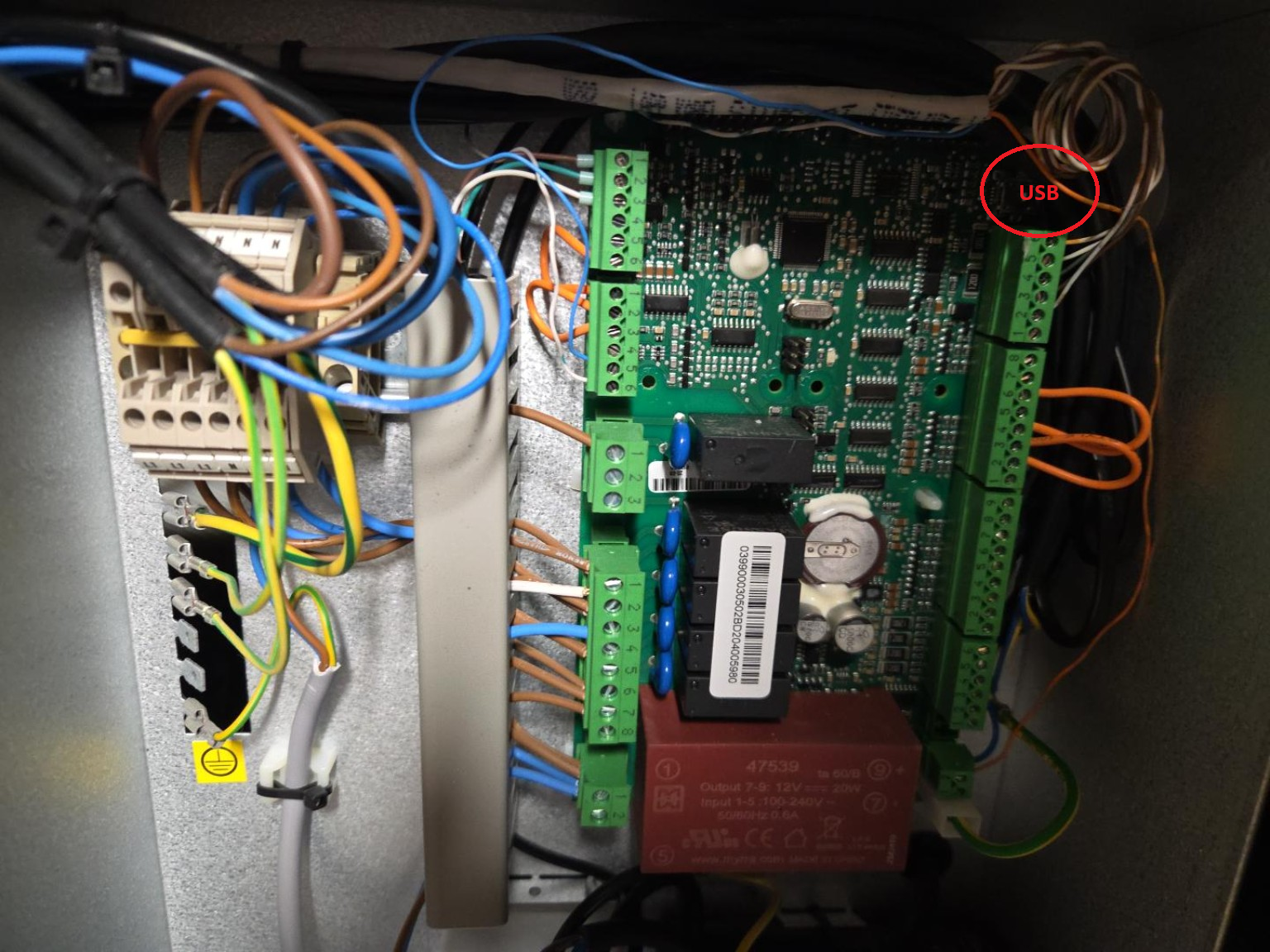
- Connect your computer to the USB port on the CTS602 control board.
- Turn the power to the unit back on.
Configure LMT100
- Create a new project using
Project → New Project. - Open
Project → Properties. - Select the COM port identified as
LMC300. - Set the baud rate to
115200. - Enable
Use raw modeunderAdvanced.
Establish a Connection
- Click
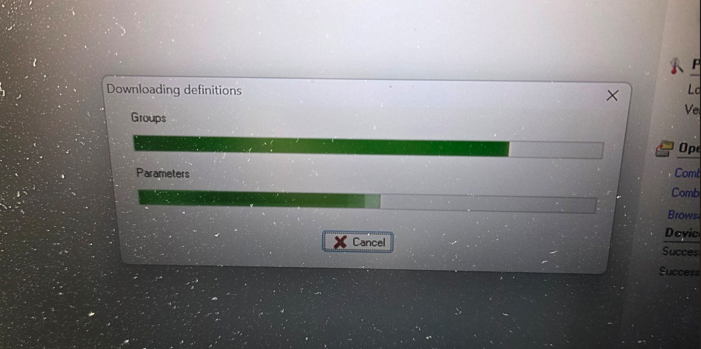
Connect. - Wait until
Downloading definitionshas completed.
- Click
Connectagain to disconnect. The status should now showOFFLINE.
Upload the Firmware
- Turn off the power to your Nilan unit.
- In LMT100, select
Device → Upload firmware. - Select the firmware file (
.bin) provided by Nilan. - Wait until LMT100 indicates that it is waiting for the unit.
- Turn the power to the unit back on.
Wait for the Update to Complete
- The firmware transfer starts automatically after approximately 10 seconds.
- Once the CTS602 controller has been updated, it will restart.
- The HMI panel will then update automatically.
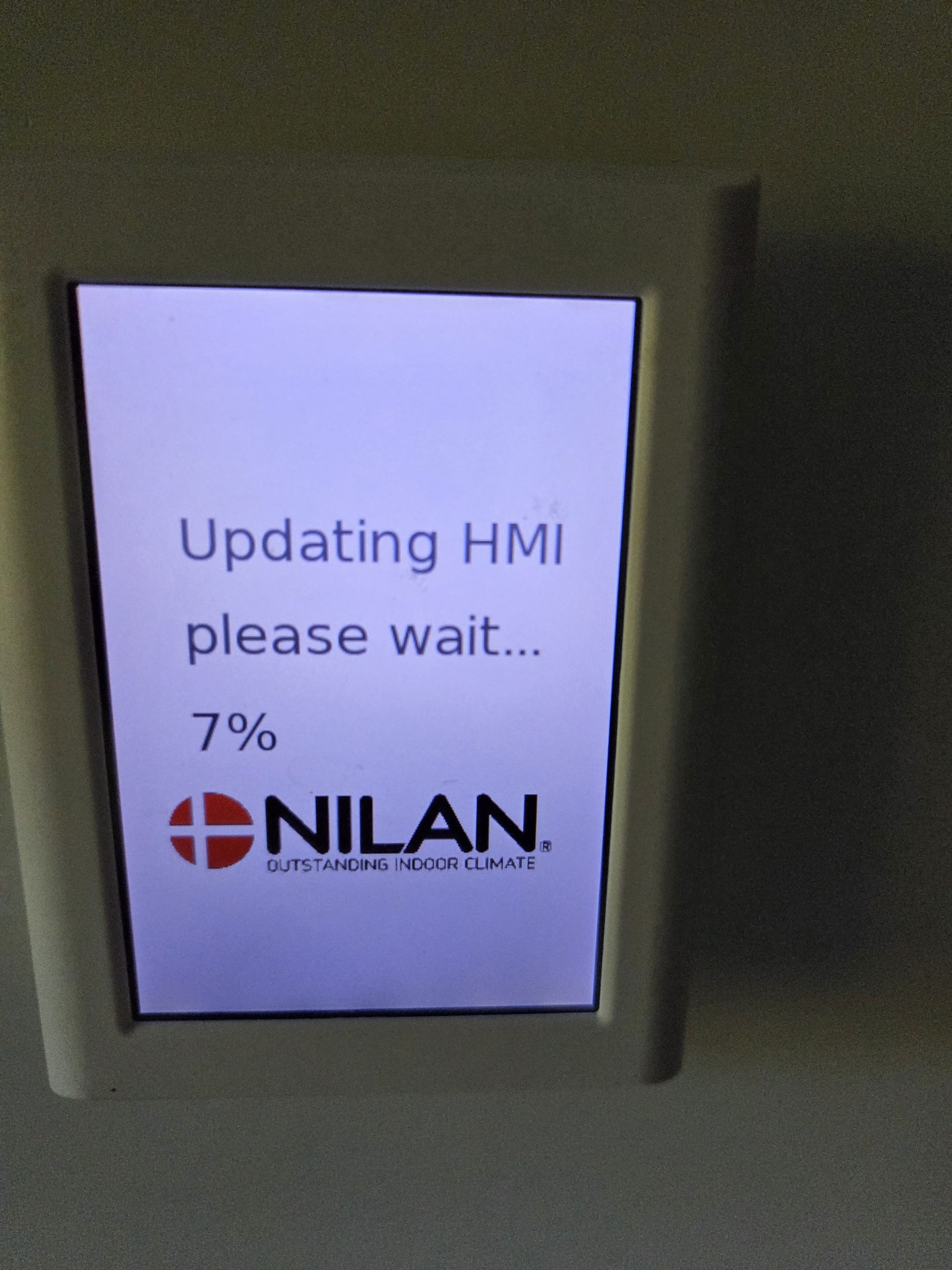
- The panel may remain black for several minutes during the update.
Do not turn off the power during the update.
Verify the Update
- Wait until the HMI panel displays its normal home screen.
- Navigate to
Unit Information(Anlægsinformation). - Verify that both the controller software and panel software versions have been updated.
- Check the unit’s settings, any active alarms, and that the ventilation is operating correctly.
- Disconnect from the unit in LMT100 and unplug the USB cable once the update is fully completed.
Important – Disclaimer
This guide covers a standard firmware update of a CTS602 controller that already has an HMI panel. Upgrading from an older control panel to an HMI panel requires a different procedure.
Firmware updates are performed entirely at your own risk. There is always a risk that something could go wrong during the update, potentially leaving your unit unusable (bricked).
Firmware updates may also reset or erase existing settings and configurations. Make sure to document or back up your settings before proceeding.
I take no responsibility for any errors or inaccuracies in this guide, or for any damage, data loss, or other issues resulting from following these instructions.
I strongly recommend having firmware updates performed by a qualified professional. If you choose to do it yourself, you do so entirely at your own risk.
Only use firmware that Nilan has confirmed is compatible with your specific unit.
Official guide: Nilan CTS602 – Firmware Update Instructions (PDF, French)